
Google Pay™
Google Pay™ offers a frictionless payment experience on Android devices where cards have been added to Google Wallet and a supported browser, for example, Chrome, is used. Google Pay can be activated in Frisbii Admin and only requires a card-acquiring agreement supporting Google Pay.
Merchants must comply with Google’s policies and terms when offering Google Pay. Before enabling Google Pay, the merchant must accept the Google Pay API Terms of Service and comply with the Google Pay and Wallet APIs Acceptable Use Policy.
Google Pay and Wallet APIs Acceptable Use Policy: https://payments.developers.google.com/terms/aup
Google Pay API Terms of Service: https://payments.developers.google.com/terms/sellertos/v1_7
Frisbii Payments Checkout determines if Google Pay is supported for the device and browser used, and presents Google Pay as a payment method if no payment_methods argument has been given when creating the session, or googlepay has been defined in the list of payment methods.
How to activate Google Pay
-
Sign in: Go to https://app.frisbii.com/ and sign in.
-
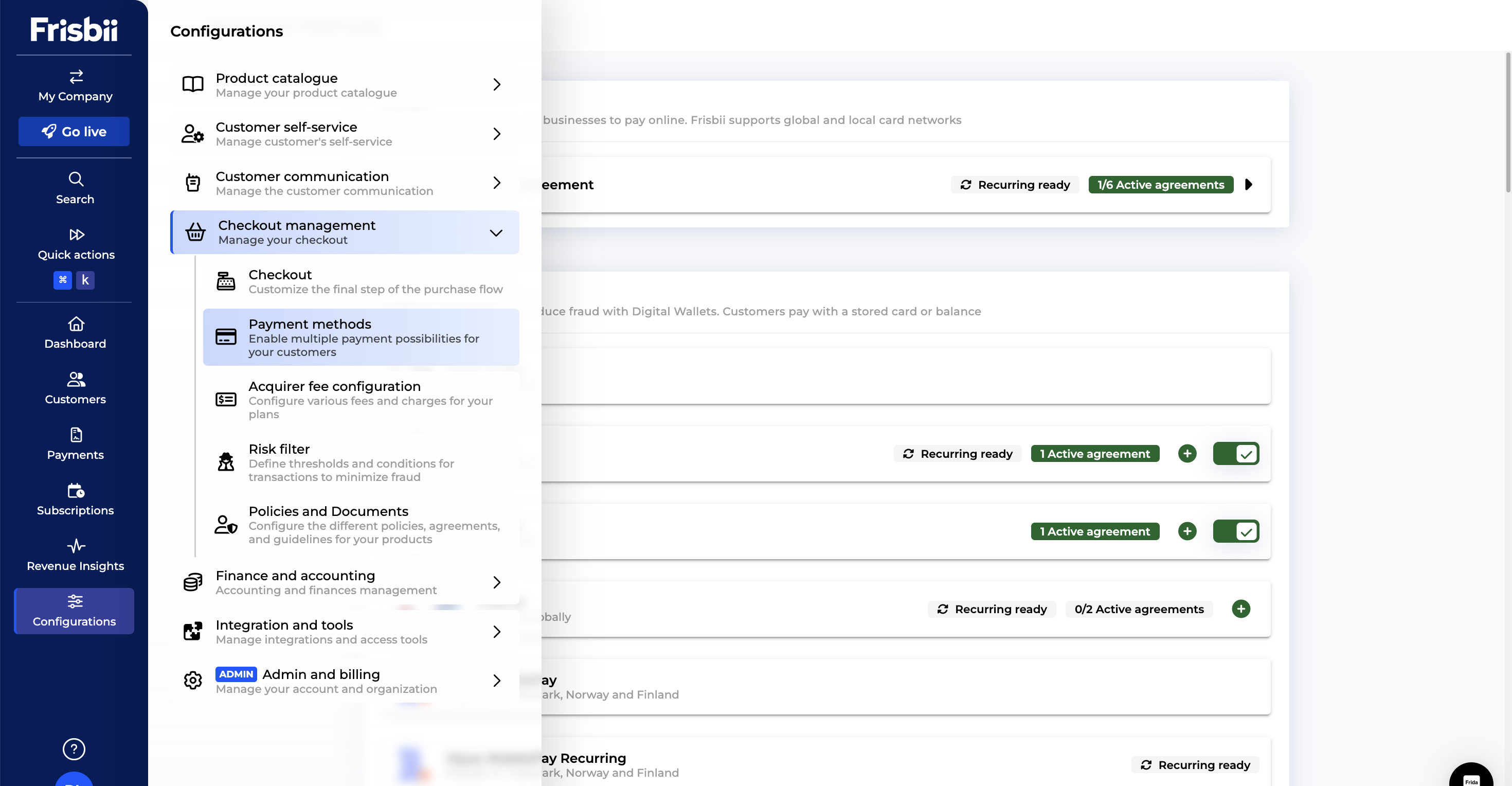
Open configurations: In the left sidebar, click Configurations.
-
Go to checkout management: Navigate to Checkout management.
-
Open payment methods: Click Payment methods (or go directly to https://app.frisbii.com/#/rp/config/payment-methods).
-
Find Google Pay: Locate Google Pay in the payment methods list.
-
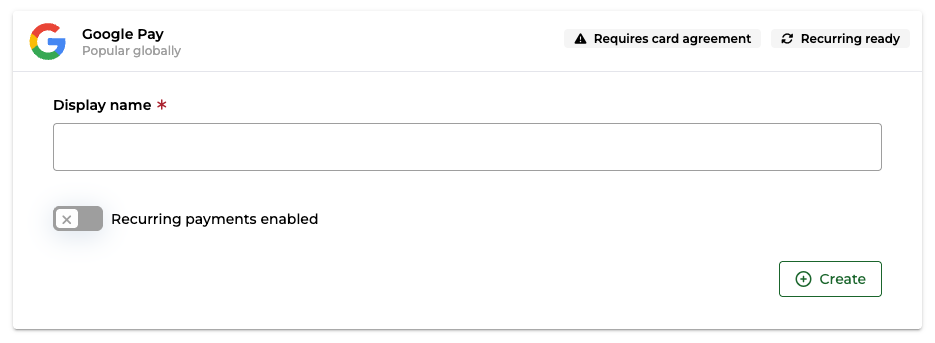
Set display name: In the Google Pay configuration, enter the Display name you want customers to see in Frisbii Checkout.
-
Create: Click Create to save and enable Google Pay.
Check if Google Pay is available on your site
If you want to show your own Google Pay button or adjust the checkout UI before launching Frisbii Checkout, you can use the SDK to check whether Google Pay is available in the shopper’s current browser and device setup. The method returns true when Google Pay can be used, and false when it is not available, for example, if the device, browser, or wallet setup does not meet the requirements.
<script src="https://checkout.reepay.com/checkout.js"></script>

<script>
Reepay.isGooglePayAvailable().then(isAvailable => {
    // handle response (eg: show/hide google pay button)
});
</script>
Note: Google Pay will only be shown in checkout if your acquiring agreement supports Google Pay, and the customer’s device and browser meet Google Pay availability requirements.
Authorization Method and Card Network Support
Frisbii’s Google Pay integration supports the CRYPTOGRAM_3DS authorization method for tokenized device credentials. In Google’s terminology, PAN_ONLY represents cards on file, while CRYPTOGRAM_3DS represents a device token authenticated with a 3-D Secure cryptogram on supported Android devices.
Google’s Google Pay API examples list these available card networks for CARD: AMEX, DISCOVER, INTERAC, JCB, MASTERCARD, and VISA. Actual availability in checkout still depends on the shopper’s country, issuer support, whether the card is provisioned in Google Wallet, and whether the acquiring setup supports the returned credential and network combination.
Liability shift
Google Pay supports liability shift for Discover, Mastercard, and Visa cards issued in the EU or the UK. Google Pay does not support liability shift for American Express, JCB, or Visa cards issued outside the EU or the UK.
Liability shift means that, in eligible scenarios, the financial risk in case of fraud is shifted away from the merchant and handled by the card issuer/network rules and the acquiring setup.
The liability shift outcome is not presented as a dedicated field in the Frisbii API or in Frisbii Admin, it is handled implicitly as part of the underlying scheme and acquiring flow.
Google Pay on mobile apps
Due to Google Pay in Frisbii Checkout being a web integration, Frisbii only supports Google Pay via web, such as mobile web browser apps, webviews, and Chrome Custom Tabs.
NoticeOn mobile applications, we recommend the use of Google's native Android WebView for the best payment user experience. However, due to Android WebView limitations, alternatives are to use Browser Intent or Custom Tabs, as they guarantee Google Pay will be detected and displayed in Frisbii Checkout correctly.
The final option would be to trigger an app switch from your Android app to the Google Chrome browser app, which will allow Google Pay™ to be detected by Google Chrome instead.
The merchant must implement these Android WebView and browser-launch configurations in the native Android app. Frisbii Checkout only detects and presents Google Pay when the runtime environment supports it.
Google Pay support in Android WebView
If your Android device has Google Play Services version 25.18.30, you can show and complete Google Pay payments in Android WebView when loading Frisbii Checkout. Please follow these steps from Google to set up Google Pay in your app:
-
Dependency: Add
androidx.webkit:webkit:1.14.0to your build file. -
Manifest: Add
<queries>tags fororg.chromium.intent.action.PAY, IS_READY_TO_PAY, andUPDATE_PAYMENT_DETAILS. -
WebView Settings: Enable the Payment Request API in your code using
WebSettingsCompat.setPaymentRequestEnabled(settings, true). -
User Agent: If you use a custom user agent, you must append the string
GOOGLE_PAY_SUPPORTEDto it.
NoticeDue to recent changes by Google, mobile applications that use Android WebView to offer Google Pay (e.g. via Frisbii Checkout) must now register and publish their app integration through the Google Pay & Wallet Console.
Google Pay support on other platforms
Frisbii Payments Checkout can process PAN_ONLY (non-network tokenised) credentials, which routes through a 3D Secure (3DS) flow for Strong Customer Authentication (SCA).
Google Pay is supported on any devices that support the following web browsers:
- Google Chrome
- Mozilla Firefox
- Apple Safari
- Microsoft Edge
- Opera
- UCWeb UC Browser
Google Pay availability
There are several conditions to be fulfilled before Google Pay can detect that it is available on the device:
- The bank must support the card for Google Pay according to Google's list of supported payment methods
- The card must be saved in Google Wallet (Android) and Google Account
- For tokenised cards, the device must be Android and use the Google Chrome browser (In-app Chrome browser or Chrome Custom Tabs works too)
- For Android devices, only devices with NFC and Android 5.0 (Lollipop) or later support Google Pay (Note that some older and budget devices may not be able to use Google Pay due to hardware or software limitations)
- Google Wallet app must be installed on the device
- Google Chrome setting
allow sites to check if you have payment methods savedmust be turned on
Updated about 1 month ago